
Introduction
The UI Engine is a powerful feature in Rannah that enables your AI agents to create rich, interactive elements in their responses. This enhances user engagement by going beyond simple text exchanges.Enabling the UI Engine
Enabling the UI engine appends further instructions to your system prompt, allowing your AI agent to output JSON data that renders UI elements like buttons, cards, carousels, forms and inputs. While not directly a UI element, your agent can also show images and render iframes out of the box.To enable it, do the following:1
Navigate to Prompt Tab
Open your agent’s dashboard and go to the
Prompts tab.2
Locate UI Engine Checkbox
Find the UI Engine checkbox in the settings.
3
Enable the Feature
Check the box and
save.Instructing Your Agent
With the UI Engine enabled, you have several options for guiding your agent’s use of UI components:Structured Instructions
Structured Instructions
Provide specific instructions in your initial or system prompt. For example:
Guided Interaction
Guided Interaction
Set up a structured interaction flow in your system prompt:
Full Creative Freedom
Full Creative Freedom
Give your agent the freedom to generate UI components as it sees fit:
For information on integrating the UI Engine with your knowledge base, see our KB and UI Engine page.
UI Components
The UI Engine offers a variety of versatile interactive elements to enhance your AI agent’s responses. They can be customized and combined to create engaging user interfaces.- Cards
- Carousels
- Forms and Inputs
- Images
- Everything at once
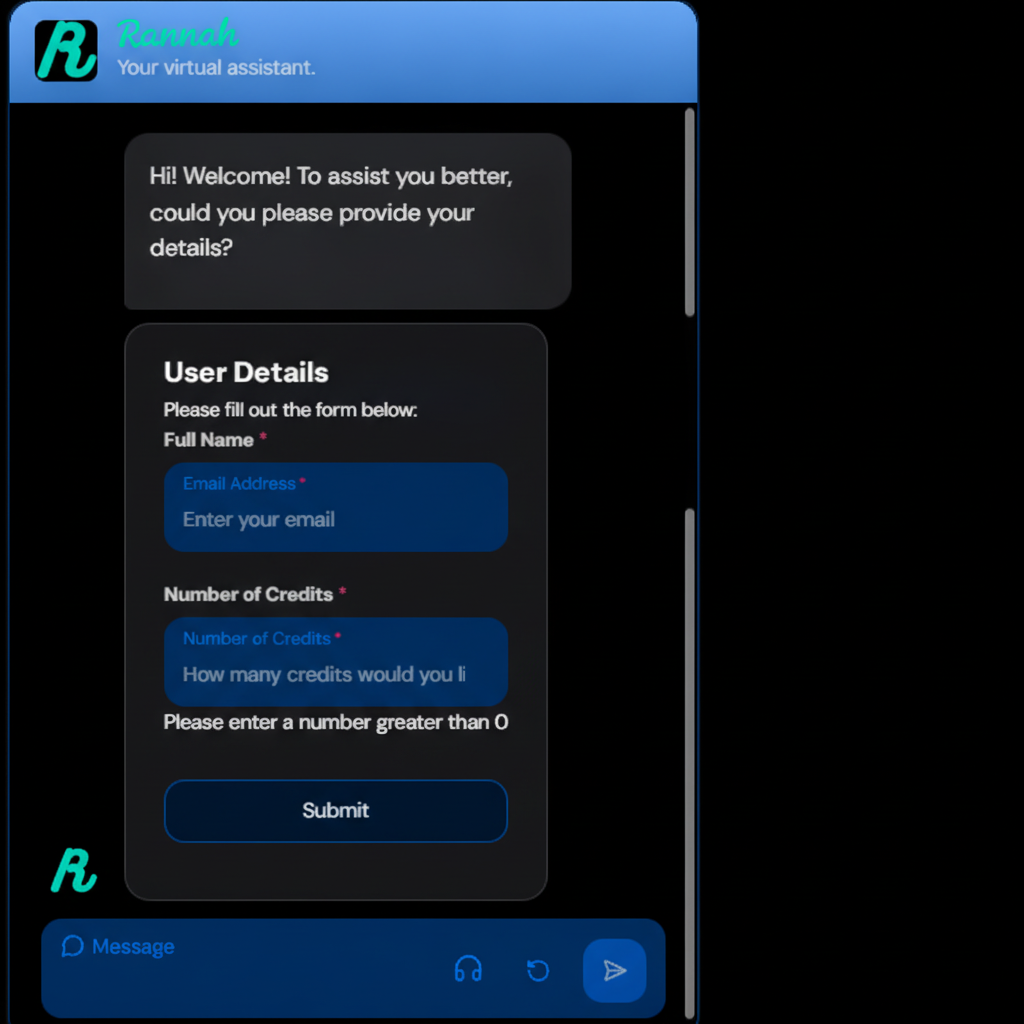
The versatility of the UI components allows for numerous combinations and
configurations. You can instruct your agent to create complex elements
like a carousel of cards, each with its own image, description, and buttons.
Best Practices
To make the most of the UI Engine:Balance Text and UI
Mix textual responses with UI components for a rich, varied interaction.
Context-Aware Components
Use UI elements that are relevant to the current conversation context.
Progressive Enhancement
Start with essential information in text, then enhance with UI components.
Test Different Approaches
Experiment with structured instructions vs. creative freedom to find what
works best for your use case.
Credit Usage Considerations
To manage credit usage effectively:1
Monitor Usage
Regularly check your credit usage in the Usage tab.
2
Optimize Interactions
Use UI components together with text responses to optimize usage.
3
Inform Clients
If you’re an agency, ensure your clients are aware of the potential increase
in credit usage when the UI Engine is enabled.
4
Compare and Adjust
Run comparisons of credit usage with and without the UI Engine to understand
its impact on your specific use case.